Creating Dashboards
Dashboards enable you to create customised, strategic views of your systems, ensuring the data you need to manage your business is available at a glance.
Create a New Dashboard
Select Dashboards from the primary left-hand navigation panel.
A Open Panel option will appear immediately to the right of this in the shape of an (>) Symbol. Click Open Panel to display the Dashboards tree.
From the Dashboards tree, select (+) then Add Dashboard.
The Add Dashboard dialog appears with several settings to configure.
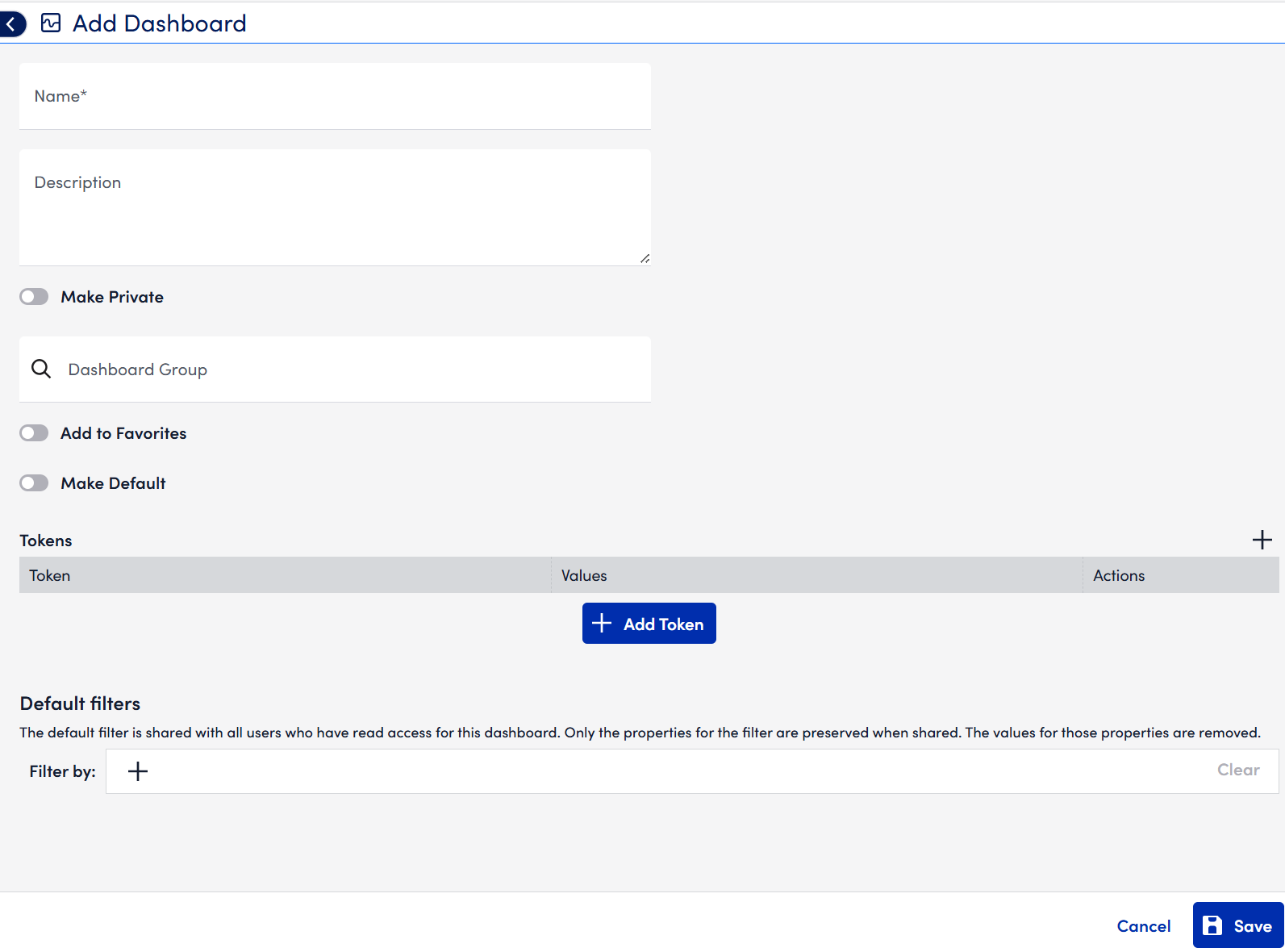
Name and Description
Enter a name and description for the dashboard.
Dashboard names cannot include the operators and comparison functions listed in the [Complex Datapoint](https://logicmonitor.com/support/logicmodules/datasources/datapoints/complex-datapoints/) support article.
Make Default
Check Make Default to make this the dashboard that initially displays each time you open the Dashboard page.
If no default dashboard is set for your user account, the dashboard you most recently viewed will initially display when you open the Dashboard page.
Make Private
Toggle Make Private to make the dashboard visible only to your user account. Private dashboards are great for sketching or testing new widgets. The ability to create private dashboards is governed by assigned roles.
If Make Private is not selected, the dashboard is considered public. Public dashboards intended for multiple users should remain public; availability for viewing and management is governed by assigned roles.
Administrators can view, add, and edit private dashboards for all users. This enables creating dashboards for internal/external customers and facilitates troubleshooting and overall dashboard management.
Group
Use Group to assign the dashboard to a dashboard group:
Start typing a group name to choose from suggested results.
To create a new group, type the new groups name and select it from suggestions.
Why group dashboards?
Review related dashboards together.
Simplify navigation when you have more than 10 dashboards.
Assign view/manage permissions by role.
Improve navigation and quickly jump between functional areas, device types, or customers.
Using Dashboard Tokens
Dashboard tokens allow you to apply a single dashboard template to different device or website groups by changing token values. This is useful for cloning common dashboard setups across multiple end users or locations.
Default Tokens
Click the + Add Token icon and place your cursor into the Token field to access default tokens.
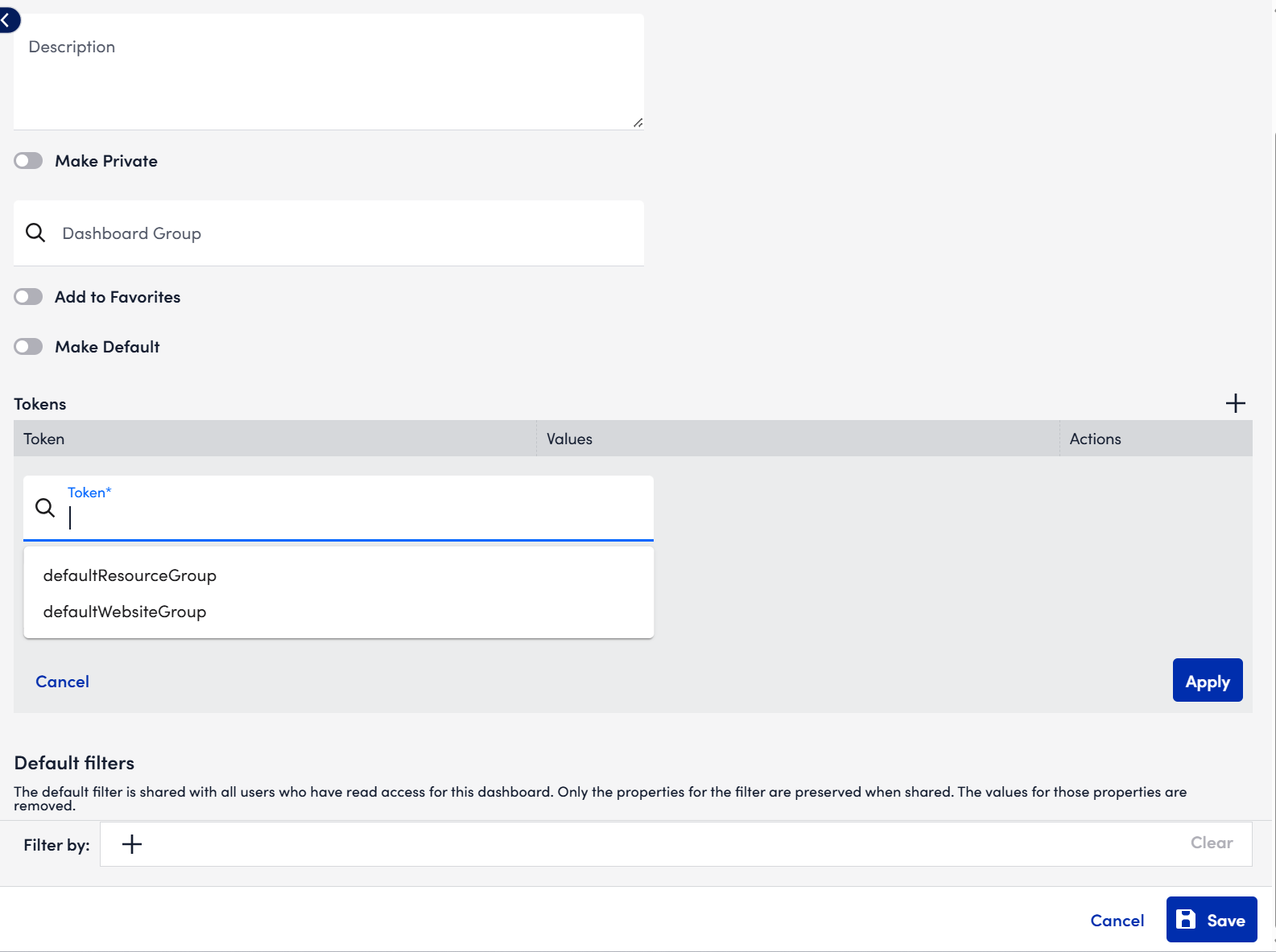
##defaultResourceGroup##
All widgets on this dashboard will default to pulling from the device group set as this tokens value.
Example: This can be done with device groups such as (Windows_Devices), (Linux_Devices), etc., set the token value to (Windows_Devices) to show only (Windows Servers) device performance.
##defaultWebsiteGroup##
All widgets on this dashboard will default to pulling from the website group set as this tokens value.
Example: Set the token value to (Production_Websites) to show only (Production) website data.
Tip: After saving a dashboard with one or both default tokens, you can edit the dashboard and enable: Overwrite existing Resource/Website Group fields with ##defaultResourceGroup## and/or ##defaultWebsiteGroup## tokens. This replaces any pre-existing widget values with the default tokens—handy for templating existing dashboards for repeated use across customers or locations.
Custom Tokens
Use the + icon to add custom tokens.
Custom token values are free text (not lookups), so they can be any string.
Primary use case: streamline input of new customer data after cloning a dashboard.
Example:
Devices are named via a standardised pattern: (DeviceName.server).
Create a custom token: (##DeviceName##) with a value like (Devices).
In a table widgets devices field, use: (##DeviceName##.server).
After cloning the dashboard for Customer B, change the token value (##CustomerName##) to (CustomerB) in Manage Dashboard. All references update automatically.
Using Tokens in Widgets
Tokens defined in your dashboards Manage dialog act as filters for widgets:
If (##defaultResourceGroup##) is set to a device group, only devices/resources in that group appear in the widgets Resource lookup.
When configuring a widgets Group, Resource, Resource DataSource, or Datapoint fields, an Insert Token dropdown will list all tokens defined for the dashboard.
Important: Token names are case sensitive when referenced in widget fields. Mismatched casing can cause widget errors.